

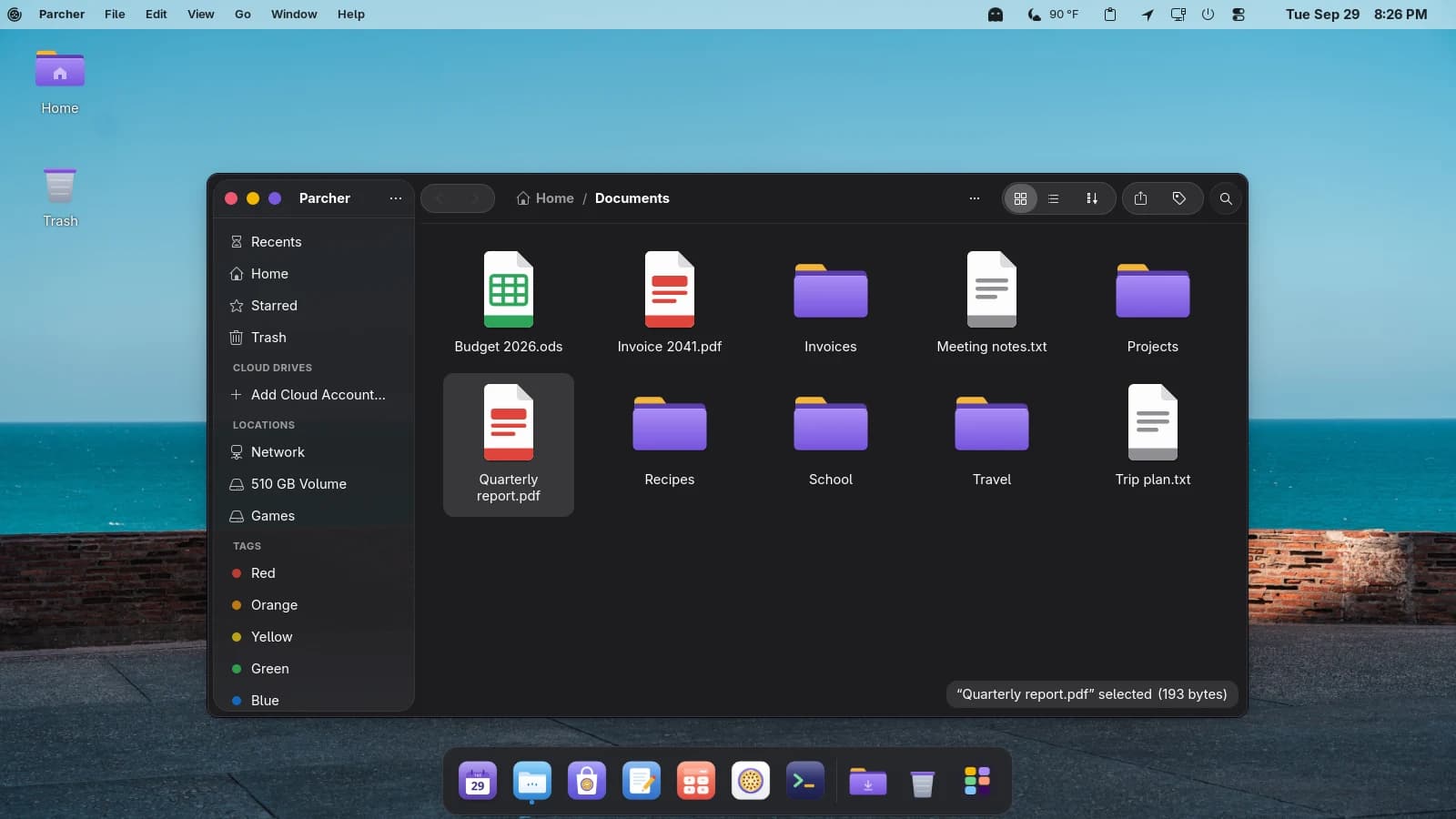
Dock
It grows as you glide.
A real Dash-to-Dock fork with hover magnification, a bounce when apps launch, and a magic-lamp effect when windows minimize.
A dock, a menu bar, a launcher, a file manager and a long list of details, all made to work together from the first login.
A real Dash-to-Dock fork with hover magnification, a bounce when apps launch, and a magic-lamp effect when windows minimize.
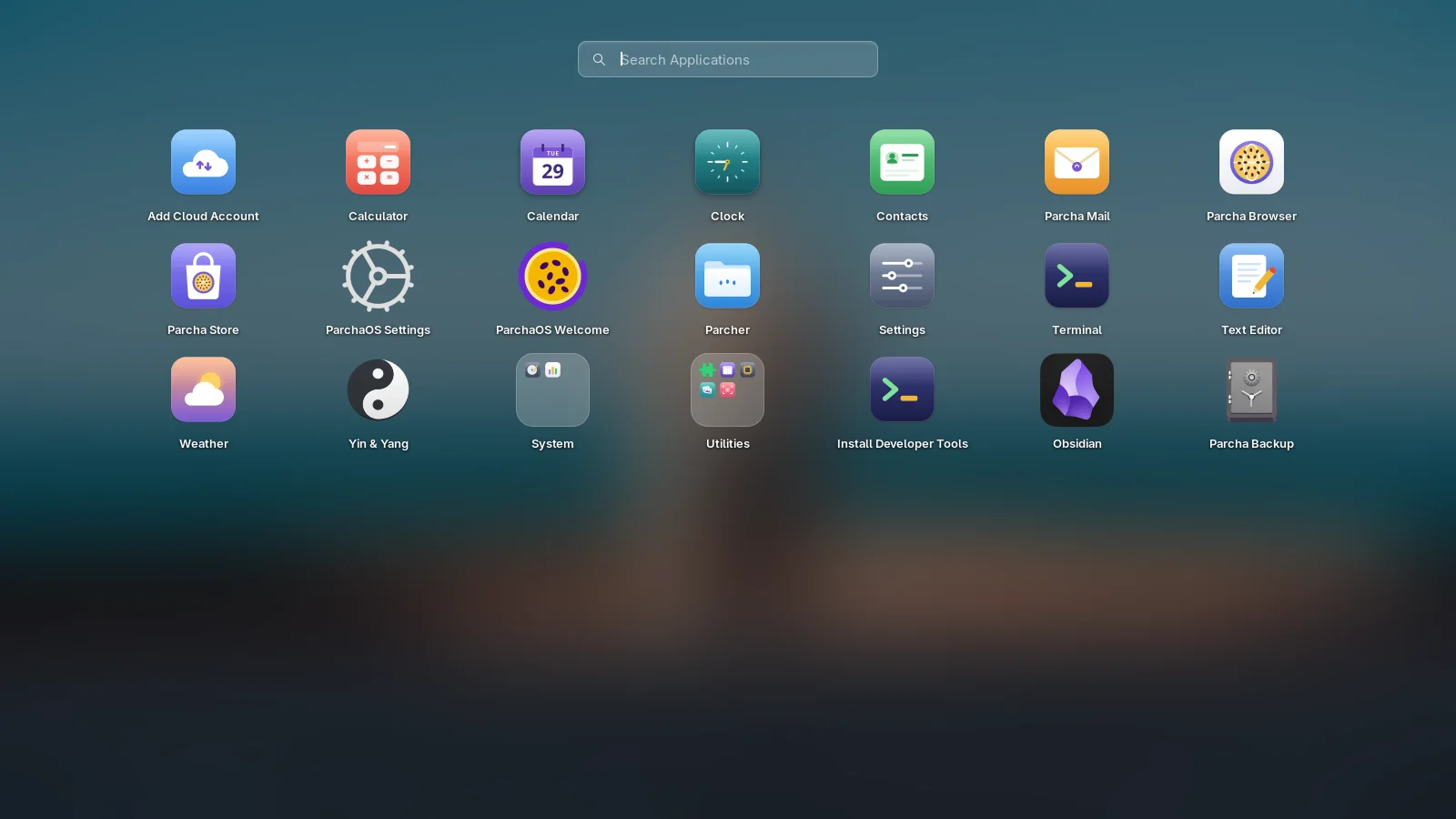
Show Apps opens a full-screen launcher over your blurred desktop. Type to search, swipe through pages, drag icons into place, and drop one app on another to make a folder.
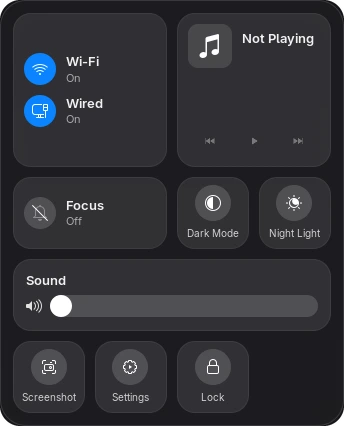
Wi-Fi, Bluetooth, Focus, Dark Mode, Night Light, brightness, sound and whatever's playing, in one tiled panel that opens from the top bar.
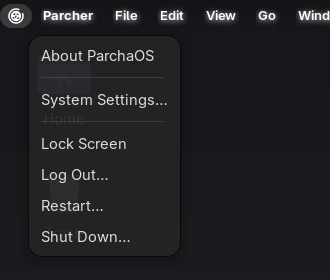
File, Edit, View, Window and Help for whatever app you're using, always at the top of the screen. The passion fruit holds Settings, Lock, Log Out and Shut Down.
Close, minimize and maximize sit on the left of every title bar, in the order your muscle memory expects.
The ParchaOS file manager is a real patched fork of GNOME Files, not a reskin, with color tags for your folders.
Genuine light and dark themes for apps, the shell and icons, switching on a schedule or automatically at sunrise and sunset.
The Super key takes over Ctrl's job, so copy, paste and every other shortcut work the way your muscle memory expects. Built on xremap.
Files and folders live right on the desktop background. Drop an icon anywhere and it stays exactly there, even after a restart. Prefer things lined up? Turn on Snap icons to the grid in the desktop preferences, or choose Arrange Icons to tidy everything in one go.
Every hour, and before and after each update, ParchaOS keeps a snapshot of your system and home folders. Open the snapshot menu in the top bar to look back and put files back. Parcha Backup, in the app grid, copies them to an external drive or a network share. Snapshots are history on the same disk, not a backup.
In ParchaOS Settings > Privacy, switch any app off and it stays off the network, including your local one, the next time it starts. Works for Flatpak apps and the rest.
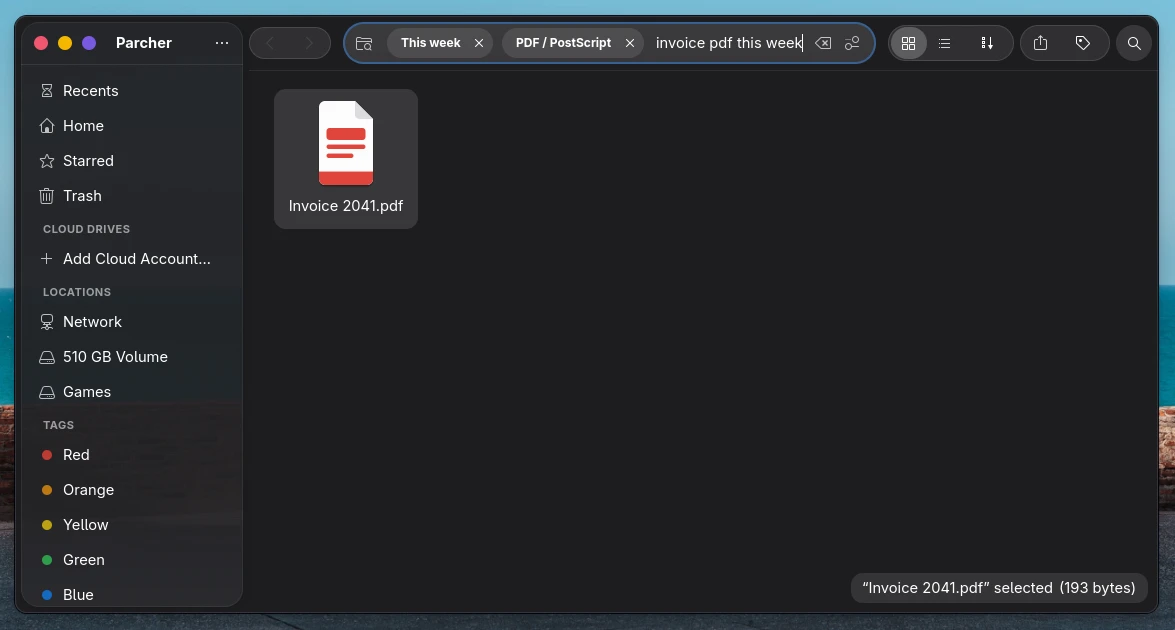
Type "pdf from last week" or "photos yesterday" in Parcher's search and it filters by date and file type for you, with tags showing what it understood.
Keep the passion-fruit violet or pick berry, sunny, leaf, ocean or graphite for folders and the trash, in Parcha Settings. Light and dark modes each get a matching set.
Everything you copy, text and images, is a click away in the top bar. Search it, pin the things you reuse, and switch on private mode when you are handling something sensitive.
Press Ctrl+Alt+D, speak, press it again, and your words are typed wherever the cursor is, in any app. Recognition happens on your computer; nothing you say leaves it. The first use downloads the speech model once (English for now).
Set a video as your wallpaper with Hanabi, which stays off until you pick one.
Notifications slide in from the right-hand corner instead of dropping from the middle.
Lost the pointer? Give the mouse a shake and it grows until you spot it.
Do Not Disturb turns on for the night by itself, at the times you pick, and never undoes Do Not Disturb you set yourself.
hBlock keeps a hosts-file blocklist up to date with a daily refresh, for every app at once. Your own hosts entries stay, and any site can be allowed.
A Chromium-based browser (Fedora's Chromium), set as the default for web links.
Browse, install and update apps from one place.
The image viewer is Parcha Preview. Clocks is Clock. Geary is Parcha Mail. Names that tell you what the app does.
Blur behind panels, and an Overview that keeps its search box out of the way until you start typing.
Original icons drawn for ParchaOS: the everyday apps, the folders, the trash and the passion-fruit logo.
The Clock icon shows the current time and the Calendar icon today's date, in the dock and the launcher.
Log back in and the apps you had open come back, with their windows where you left them.
Two looks for the menu bar, dock, launcher and Parcha Controls: translucent Glass, or calmer, more solid Classic. Switch any time.
At first login, a few quick choices: style, light or dark, how the Super key works, and whether to share your location. It's off unless you say so.
The ParchaOS-only options in one small app, also a page in GNOME Settings: style, session restore, the focus schedule and the keyboard.
Install Developer Tools, in the app grid, sets up a command-line coding assistant for you (Claude Code) without a terminal walkthrough.
Removing an app from Parcha Store also clears the leftover settings folders that Flatpak and regular apps leave behind.
sudo dnf update brings in fixes and brand-new ParchaOS features, not just newer versions of what you had.
ParchaOS starts as a live desktop from a USB stick.